FAQs

How to install T-Scan 10 software over a network?

Network installation is an optional feature, which requires an additional licensing fee to run T-Scan™ software on multiple computers linked to a single network database. The network database installation screen, described below, will only be available with software that has the network license. Please contact Tekscan for more information.

SERVER INSTALLATION

Note: For T-Scan Version 10 only! Run the T-Scan setup on the actual server that you want to have host your patient files and install the database.

1. Put software CD into the server’s CD drive or run the software from the provided link. The Installation program opens automatically. Click Install Software

2. Select SQL Server Database and follow the on-screen instructions.
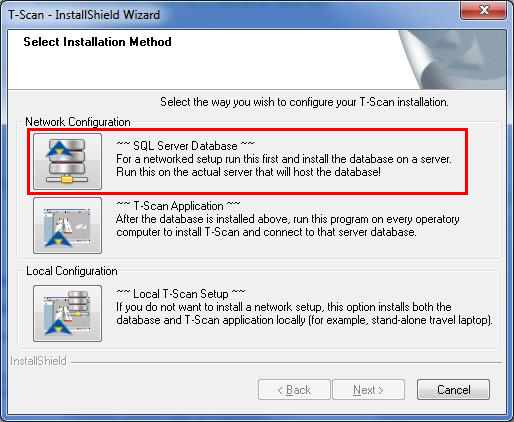
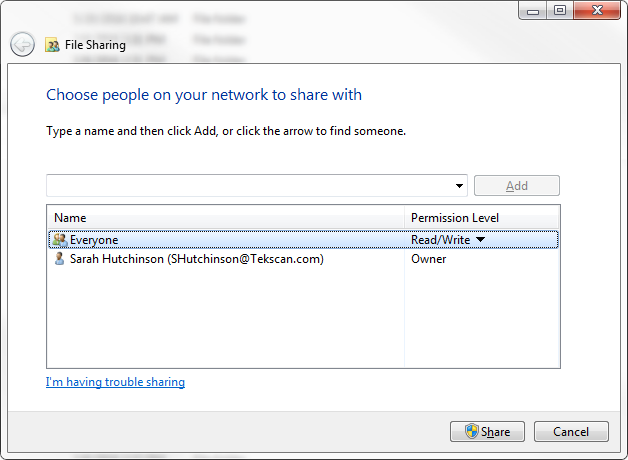
3. Once complete, navigate to the C:\Tekscan folder, select the Scans sub-folder, right click and select Share With. Add Everyone and adjust the Permission Level to Read/Write. For stricter network security, add individual user accounts instead of Everyone. Click Share, and then Done.
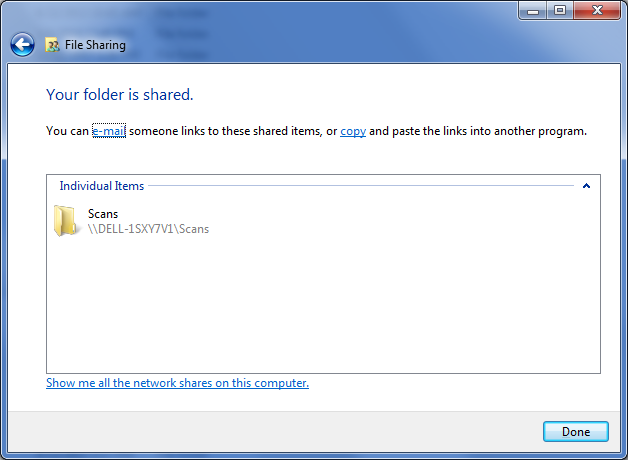
4. You will see a dialog like the one below. Take note of the server path (\\Dell-1SXY7V1\Scans in this example), as it will be critical that you select / enter this path during software installation on each operatory computer.
Note: Your Network Administrator needs to setup static TCP port for TSCAN10 instance, then open the server firewall for that port, in addition to UDP port 1434.


OPERATORY INSTALLATION

5. Go to the computer on which you wish to run T-Scan and run the setup, this time selecting T-Scan Application.
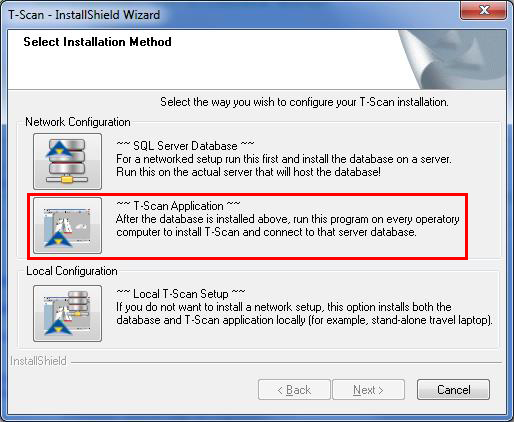
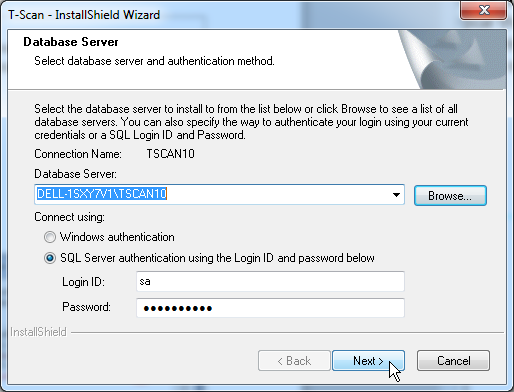
6. Follow the on-screen instructions. When prompted to select the Database Server, click Browse and select the correct SQL Server/Instance name which should have the suffix “TSCAN10.”
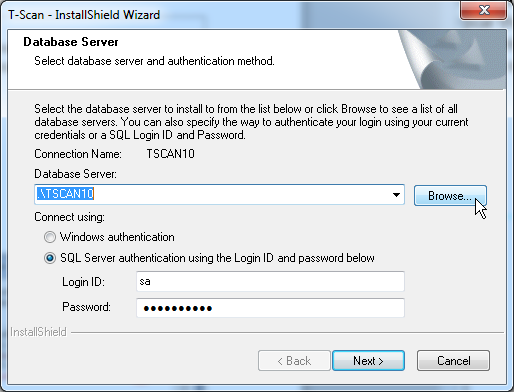
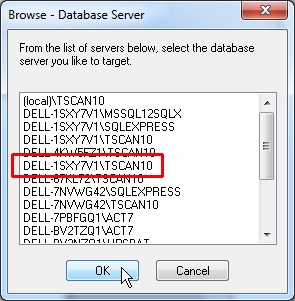
Note: If the TSCAN10 instance is not advertised above, just enter “server name\TSCAN10” and click Next.

7. When prompted to select where to save scans on the network, click Browse (or directly type the path). Point to the network folder you shared on the database server earlier (DELL-1SXY7V1\Scans in this example).
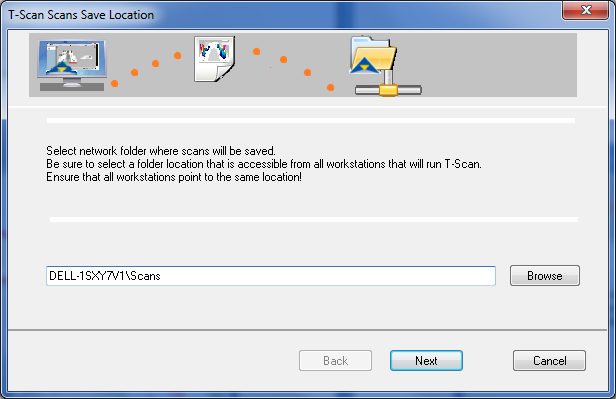
8. Repeat steps 5-7 for additional operatory computers, being sure to point to the correct Scans location on the network. All patient files should be accessible from that point forward.

9. Double check on each operatory by opening the software, going to Help > Technical Support, and ensuring Database Location and Scans Save Folder are both pointing to the correct locations.

Link to this FAQ

How Can I Track My Website Order?

Online tracking is available for all website orders.

When your package ships you will receive an email from our Orders Department that includes a tracking number and link.

You may track the package by pasting the tracking link in a web browser, pasting the tracking number at https://www.ups.com or by calling UPS.

If you did not get a tracking number then please contact us at orders@tekscan.com or call us at 800.248.3669 / 617.464.4500 x410 Monday through Friday, 8am - 4pm EST.

Link to this FAQ

What Are Your Shipping Rates for Website Orders?

Our shipping rates depend on region and method. We use UPS for our webstore.

Note that UPS international shipping rates to our customers outside of North America, specifically in Europe or Asia have increased substantially in recent years.

There may be options via our local Tekscan distributors for some standard products. Contact us for details.

Shipping costs are subject to change at any time, and do not include any customs or clearance charges.

UPS does not deliver to APO, FPO or PO boxes. If entered then we will contact you for a street address.

Taxes are charged for shipments to Massachusetts, California, and Washington state, and other locations subject to regional requirements.

Link to this FAQ

What Shipping Methods Do You Offer for Website Orders?

UPS

Tekscan's preferred carrier for website orders is UPS.

We rely on UPS' large international network for timely delivery of packages.

Delivery time for packages depends on two factors – processing time and shipping time.

Processing time is the time it takes for an order to leave our facility in South Boston, which is usually 2-3 business days.

Shipping time is the time the package takes in transit to its destination. This number can vary widely and is dependent on many factors such as the shipping method chosen, the ship-to country, and more.

Link to this FAQ

Reinstalling the T-Scan Handle Drivers

Sometimes you cannot run a New Scan, indicating a possible driver issue with your Evolution™ handle.

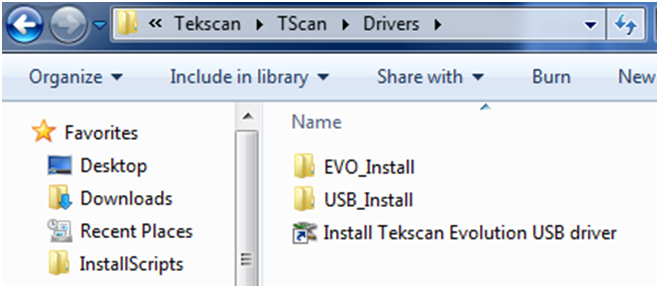
To reinstall the drivers, please go C:\Tekscan\TScan\Drivers and double-click (run) Install Tekscan Evolution USB driver.

Reinstall T-Scan driverse

Restart T-Scan™ when done and see if this fixes the new scan issue.

Link to this FAQ

T-Scan ODBC Errors

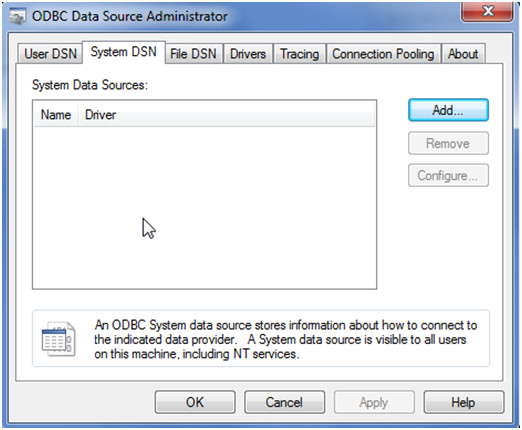
When T-Scan™ shows "ODBC" errors, configure ODBC Data Source Administrator:

T-Scan ODBC errors

On XP machines go to Control Panel | Administrative Tools | Data Sources (ODBC)

On 32-bit Windows machines run C:\Windows\System32\odbcad32.exe

On 64-bit Windows machines run C:\Windows\SysWOW64\odbcad32.exe

On the "System DSN" tab, configure Patient Registration.

Link to this FAQ

Error: Handle Driver is Not Loading - Error Code 52

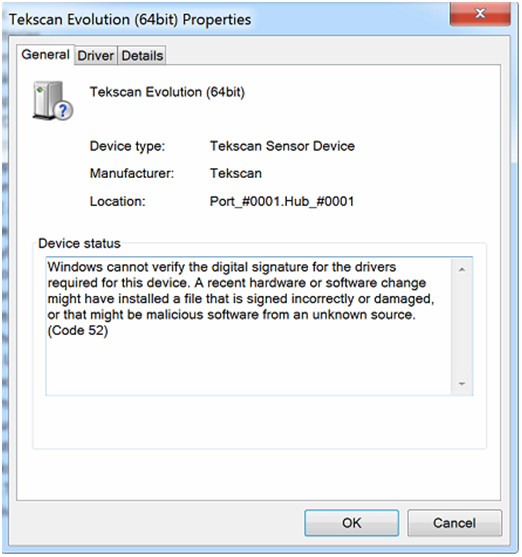
Issue: T-Scan or I-Scan doesn't see the Evolution handle. The Device Manager shows Code 52 error.

T-Scan 9.1 Handle Driver Error

Solution:

First enable Windows Updates on your system. Install all the critical updates and see if this fixes the Code 52 error.

If not, this could be caused by a required security patch from Microsoft (that is missing). Info on the update needed:

https://support.microsoft.com/en-us/kb/3033929

Download of the update:

https://technet.microsoft.com/en-us/library/security/3033929

"SHA-2 certificates require KB3033929 on Windows 7

If your certificate uses SHA-2 or has SHA-2 certificates in its chain of trust and you are using it to sign kernel modules, then you should be aware of KB3033929, an update for Windows 7 distributed through Windows Update. On versions of Windows 7 without this update, the kernel will reject signatures made with certificates that use SHA-2, so they cannot be used to get a kernel module to load."

Select your Windows OS, download, install and re-boot the computer.

Link to this FAQ

How to download and install TeamViewer?

Instructions:

  1. Download the TeamViewer file here.
  2. Double-click to install TeamViewer
  3. Provide the 9-digit ID (Example shown below)

    TeamViewer ID


    Note: If there are any errors downloading or installing the TeamViewerQS.exe above, please use this .zip file link:

Download TeamViewer

  1. Click the link above to open the download dialog box
  2. Unzip the downloaded file.
  3. Double-click and install TeamViewer
  4. Tekscan will need your 9-digit ID

Link to this FAQ

What are the dental T-Scan computer requirements?

MINIMUM SYSTEM REQUIREMENTS

Windows® Based
  • Windows 10 or 11 Home or Pro versions
  • Memory: 8 GB RAM minimum, recommended 16 GB
  • 20 GB Disk Space
Virtual Windows Based (running on Mac OS)
  • Mac with minimum 8 GB RAM, recommended 16 GB RAM
  • VMware® Fusion®  or Parallels® software
  • Windows® 10  and 11 software 64-bit (ARM not supported)
  • 75 GB Disk Space


Link to this FAQ

I have an RMA Number. What do I do?

After your RMA number has been issued, you should have received an email with instructions, which are printed below.

  1. Mark your RMA number clearly in large text on the outside of the package. We are unable to accept packages which do not clearly show the RMA number on the outside of the box.
  2. Inside the package, please include a letter providing your name, your RMA number, your return shipping address, and a brief description of the problem.
  3. Please package the returned product very carefully to prevent damage during transit. We recommend the original box and packing material. If the original packing is not available, we recommend at least one inch of firm padding all the way around the product. The package should be trackable and insured for an appropriate value.
  4. Ship the package to:

Tekscan, Inc.
333 Providence Highway
Norwood, MA 02062

Attention: RMA # RMAxxxxxx (your issued number)

Note: You are responsible for the cost of shipping the product to Tekscan. We will gladly match your shipping method (e.g., Ground, 2-Day, overnight, etc.) for the return shipment back to you. However, please be aware that any local customs charges will not be paid by Tekscan.

If you have any further questions regarding your RMA, please contact Tekscan Technical Support.

Link to this FAQ