FAQs

Are Tekscan sensors waterproof?

Question: Are Tekscan sensors waterproof?

Answer: Tekscan sensors are water resistant, but not water proof -- water will eventually seep in if left submersed. That is why we recommend re-sealing them with another adhesive if the sensor will be exposed to water.

When water or other liquids are involved in the measurement, it may be desirable to achieve a perimeter seal around the sensor. Please recall that Tekscan sensors are fabricated from two thin sheets of polyester sheet, joined by an adhesive. For production reasons, the adhesive must be screen printable. The production adhesive is reported to result in an open cell foam that provides an adequate barrier to water for an hour or two, but eventually water will wick or penetrate through it. Adding a thin layer of adhesive around the perimeter may protect the sensor from water incursion. Users report that adhesives used to seal aquarium tanks both stand up to water and have grip on polyester sheet.

Here is one brand of silicone sealant

100% Silicone Aquarium Sealant- made by All Glass/Aqueon Products comes in a 1oz or 3oz tube.

Link to this FAQ

Recommendations of adhesives for use with sensors

Question: I want to mount sensors onto a latex glove, to be worn by a doctor doing palpating. Is there an adhesive which will not damage the sensor or the latex? Also, the fingertip will be larger than the sensing area, so a puck will have to be used to ensure that I am measuring all of the applied force. What do you recommend for pucks?

Answer: Using a puck to ensure proper loading of the sensing area is a good idea, but the material depends on your application.  Please see:

What is a puck/shim and do I need to use it?  

There are several approaches to adhere a sensor to a surface.  The first is to secure the perimeter of the sensor with conventional cellophane tape.  The idea is to hold the sensor firmly in place, but still allow the active region a bit of opportunity to move or "settle in" to a preferred location as mating parts join.  Because tape used to secure the sensor adds to the thickness, it should NOT be placed over the active region.  It should be applied so its thickness does not affect the measurement.

A second choice is to use double-sided tape.  Double-sided tape is easy to handle and can be trimmed to exactly the area of interest. Care should be taken with tape to ensure that the thickness under the active region of the sensor is uniform.  There should be no gaps without tape or joints or seams where the tape overlaps.  Double-sided tape is available in various tacks or amounts of grip.  It is also available in widths to accommodate many applications.  The presence of double sided tape on the active region change the surfaces that bear on the sensor, so it is advantageous to calibrate the sensor with the tape in place.

Use of spray adhesive has the advantage that it can form a thin layer without overlaps or gaps.  Here are several candidate sprays to consider.

From 3M Industrial Tape & Specialties, St. Paul MN 55144-1000
Ordering Tel: 612-733-1100       Tech Support Tel: 800-362-3550.
Product                          Model Number  Comments
3M Super 72                 62-4694-4930-0 Rated 8 Lb/In2, 24 oz  spray can
3M Super 77                 62-4437-4930-4 Rated 15 Lb/In2, 24 oz  spray can
3M Super 90                 62-4683-4930-3 Rated 25 Lb/In2, 24 oz  spray can

Tool Mates Industrial Adhesive from   AERVOE INDUSTRIES INCORPORATED   1198 Mark Circle l Gardnerville, Nevada 89410    Phone: 1-800-227-0196   Fax: 1-775-782-4027  Email: mailbox@aervoe.com  Web site:  www.aervoe.com This spray has high tack, but should be carefully applied, because it can form an uneven layer.

Sure Tack Gasket Sealant,  Part Number 22108  Extra tacky gasket spray adhesive from ITW Consumer- 2107 W. Blue Heron Blvd. Riviera Beach, FL 3340.  Phone (561) 845-2425 or (800) 327-6880.  Email: info@itwconsumer.com.  This spray has high tack, and is intended for use in automobile engine flanges where grease, oil or gasoline may be present.  The adhesive is very good, but over-spray is difficult to clean up.  Familiar "red" color insures uniform coverage. Tacky film never hardens to insure proper gasket position and alignment. For use with paper, cork, metal, rubber and asbestos gaskets.

When water or other liquids are involved in the measurement, it may be desirable to achieve a Perimeter Seal around the Sensor.  Please recall that Tekscan sensors are fabricated from two thin sheets of polyester sheet, joined by an adhesive. For production reasons, the adhesive must be screen printable.  The production adhesive is reported to result in an open cell foam that provides an adequate barrier to water for an hour or two, but eventually water will wick or penetrate through it.  Adding a thin layer of adhesive around the perimeter may protect the sensor from water incursion.  Users report that adhesives used to seal aquarium tanks both stand up to water and have grip on polyester sheet.

Note: Tekscan now sells peel-and-stick pucks directly from our online store (available in two diameters). Click here to purchase

Link to this FAQ

Different values for the feedback resistor in the recommended FlexiForce circuit

Question: What is the effect of changing the value of the feedback resistor used in the circuit in the manual?

Answer: If you are using our recommended circuit, a feedback resistor at half the recommended 20 kΩ value will increase the range to about double its stated range (up to ~0-50 lbs from ~0-25 lbs). If you only interested in measuring forces up to 4.5kg (~10 lbs), you should double the feedback resistor (rather than halving it). A feedback resistor of about 40kΩ would decrease the dynamic range to about 0-12 lbs.

Link to this FAQ

How to convert .fsx movie files recorded in the Tekscan software into a standard movie format?

Question: How can I convert .fsx movie files recorded in the Tekscan software into a standard movie format? If this is not possible with your software, what do you recommend?

Answer: This cannot be done directly from the Tekscan software but, you can capture the movie to an *.avi file using a couple of different dynamic screen capture products.

These screen capture programs can record what is happening on your computer screen and can save this information as an AVI (*.avi) file -- a popular digital video format. Think of yourself holding a video camera to capture what is occurring on-screen. You can record the *.fsx movie in your software, and save the screen movement as an *.avi file. To do this, you could start the Tekscan software and play back a Tekscan movie, while capturing the screen image to video with the dynamic screen capture software.

A full explanation of how to use screen video capture software is beyond the scope of this document; however, here are two products that can capture screen information to an *.avi file:

Hypercam

Camtasia

Information on their use of these products can be found at the above websites.

Link to this FAQ

No Handles Found... with Parallel electronics

Issue: We are not able to get our Parallel system working. We always get: "no handles found..."

Solution: If any printer is installed on the parallel port, this will prevent the computer from recognizing our parallel electronics. This happens regardless of whether the printer is connected at the time. Try deleting the printers from the Printers dialog in the Windows Control Panel. Any printers connected simultaneously should always be connected to the USB port.

This problem will always occur when printers are installed on the LPT1 port in Windows 2000 or XP.

Parallel Troubleshooting

  • Disconnect all parallel electronics and reconnect that the electronics in the following order: AC adapter first, then parallel cable to the receiver and to the parallel port on the computer. Finally connect the handle. Then restart the Tekscan software.
  • Reboot after installation –- this starts the driver.
  • Once the computer starts, wait five minutes and reboot a second time -– this allows the driver to make some registry changes.
  • Whenever the computer starts, wait a few minutes before starting Tekscan software to be sure drivers load.
  • Delete any printers installed for parallel port.
  • Make sure software is enabled for parallel electronics.
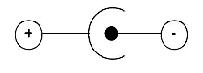
  • Confirm that the correct AC adapter is connected to the equipment. This adapter should have an output voltage of DC 5V and an output current from 600mA to 2.5A. It should also have center negative polarity, displayed with this symbol:

    Center negative polarity

  • Install the software on a second computer and then try using the electronics with this second computer. If the electronics is still not recognized by the software, then the electronics may require repair. Please contact Tekscan customer support to obtain an RMA number for repair.

Link to this FAQ

How does the level of accuracy change as curvature of surfaces increases?

Question: How does the level of accuracy change as curvature of surfaces increases? In other words, what level of curvature causes so much crimping in the sensor that readings lose accuracy? Is contact area affected by the curvature or does this just affect the pressure readings?

Answer: Curvature or wrinkling of the sensor will produce a preload on the sensor. This will affect both the pressure readings and the measured contact area. The extent of this preload is dependent on the radius of curvature and on the pressure range of the sensor. Sensors with lower pressure ranges are more sensitive and will be more inclined to produce readings induced by curvature of the sensor.

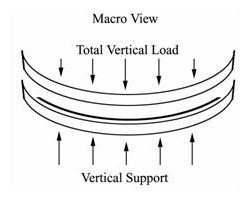
Curved Contact Surfaces When studying contact between soft or curved objects such as the foam of a bed or chair and human flesh, or artificial knee joints, calibrate with the objects being studied, not with an equilibrator. That way the curvature that evolves between the surfaces in calibration is similar to the curvature of the experiments. To better understand this, consider a free body diagram of a concave curved surface supporting a convex vertical load. The total resulting vertical force vector results from many individual local vectors with opposing horizontal components, which cancel out. Tekscan sensors respond to the individual local normal forces, and the software sums these forces (assuming the sensor is flat).

Curved contact surface

Tekscan sensors are made with s dimensionally stable substrate: polyester sheet. A dimensionally stable sheet rolls nicely around a simple curve such as a cylinder or cone. Thus, measurements can easily be taken on a coffee cup, rolling pin, or the body of a ballpoint pen. A dimensionally stable material has difficulty wrapping smoothly over a ball, or someone´s nose or chin. If the sensor crinkles, or develops folds, it is prone to report high-pressure output where little or no pressure is applied. These locations may be “tared out”, the bottom threshold of the legend can be raised, or they can be edited out of the movies altogether.

When loading soft interfaces, such as a crash dummy or a person onto a foam/cushion, try to calibrate with the actual materials and with the actual profiles/curvature. Curved contact surfaces with complex curves may be measured with Tekscan´s sensor models 6900, 9801, or 9830 since they have narrow sensing areas (“fingers’) that lend themselves to positioning on contoured surfaces with minimal artifact generated from the geometry.

Link to this FAQ

Periodic saturated (red) frames during recordings with Tekscan PCI electronics and computers with Hyperthreading enabled

Issue: Periodic saturated (red) frames during recordings with Tekscan PCI electronics and computers with Hyperthreading enabled

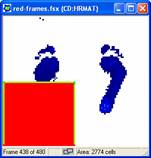
Saturated values in frameSaturated values in frameSolution: This occurs when collecting recordings with Tekscan PCI electronics connected to a computer with a Pentium 4 processor 3.0 GHz or higher and hyperthreading technology enabled. While collecting the recording, occasional frames will have large areas that display saturated values. These values are displayed as red blocks within the recording window as shown in the image.

When hyperthreading technology is enabled in the computer's processor, this creates a timing problem while collecting data from the Tekscan PCI board. Hyperthreading is technology introduced by Intel with their Pentium 4 processors. It allows a single computer processor to act as two parallel processors and execute two threads of software code simultaneously. The Tekscan recording process requires the full resources of the processor, especially when recording at speeds over 50 Hz.

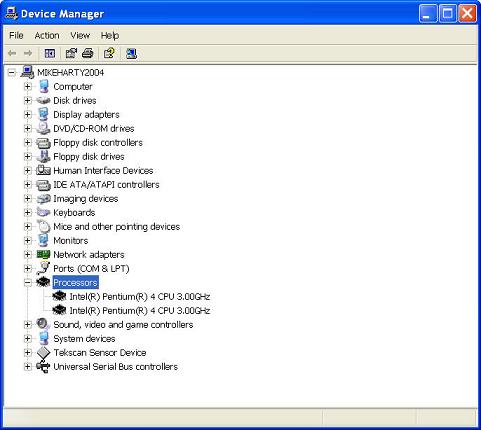
The presence of two processors can be seen in the windows device manager. To see this, right click on "My Computer" and select Properties. Under the Hardware tab will be a button to open the Device Manager. Click the + sign next to Processors and there will be two processors listed if the computer is using hyperthreading or has two physical processors.

Device Manager - Processors

When hyperthreading is enabled on a computer, this creates an occasional timing problem with the Tekscan PCI board during recording. This causes the Tekscan software to momentarily lose communication with the PCI board and when this occurs, the software displays saturated data for these frames.

This problem can be resolved by disabling Hyperthreading in the BIOS of the computer. This should not prevent other software programs from running, but it is possible that some programs specifically designed to take advantage of hyperthreading may perform more slowly. The manufacturers of these programs should have more information on how disabling hyperthreading may affect their software.

To enter the BIOS, reboot the computer and follow the commands for entering Setup that appear immediately after the computer starts and before Windows begins loading. Typically there are instructions to push the F2 key to enter the Setup console, but this key may be different on some computers.

Once in the BIOS, there should be a menu for CPU information, and within this menu, a toggle switch to turn hyperthreading On or Off. This should be set to Off. Then Exit the BIOS and Save the changes.

Because making changes to the BIOS can have other effects on your computer, any users unsure of making these changes themselves should contact their computer's manufacturer for more details on BIOS changes and disabling hyperthreading.

This problem will also exist on computers that have two physical processors. If this is the case, the computer's manufacturer may be able to offer instructions for disabling one of the processors. Otherwise, a computer with only a single processor will be required for the Tekscan software.

Link to this FAQ

My software does not recognize my EH-1 USB Handle. I get the error: No Handles Found

Issue: My software does not recognize my USB Handle.  I get the error: No Handles Found

Solution: Note that the EH-1 USB Handle is an older model.  It will not be possible to use an EH-1 Handle with a 64-bit computer.

First, check the indicator light at the end of the Handle near the cord. If this is not lit, then the Handle is not getting power.

If the indicator light is amber in color, rather than green, you will want to uninstall the device driver for the USB Handle and then, reboot the computer.  You should confirm that USB is listed as one of the available Handle types in the No Handles Found error message.

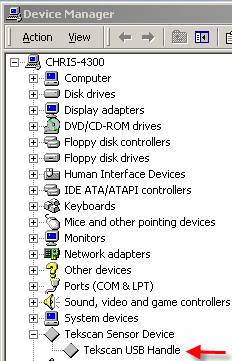
  • Right-click on My Computer.
  • Select: Properties.  On the Hardware tab, click the button: Device Manager.
  • Find Tekscan in the list.

Device manager

  • Right-click on the driver for the USB Handle.  Select Uninstall.
  • Then, unplug the USB cable and reboot your computer.  When it comes back up, plug in the USB cable.  Windows should now be able to find and install the driver for the Handle automatically.

If Windows cannot find the driver automatically, insert your Tekscan CD,  exit from the CD's installation program, and then have Windows find the driver on the CD.

Always plug the handle into the same USB port on your computer. Otherwise, Windows will force you to reload the device driver.

Link to this FAQ

How do I calibrate my FlexiForce Sensor?

Question: How do I calibrate my FlexiForce™ Sensor?

Answer: Below please find a "Quick Start" Calibration Guide for FlexiForce Sensors.

Introduction:

Conditioning the FlexiForce sensors before every use is recommended. In addition, calibrating the sensors is recommended before initial use. The following video demonstrates the conditioning and calibration procedures.

You can also download and print the Quick Start Calibration Guide for FlexiForce Sensors.


Link to this FAQ